Setting up an FTP client for Garforth FTP
First download and install Filezilla, a free open source ftp client.
Click here to download Filezilla
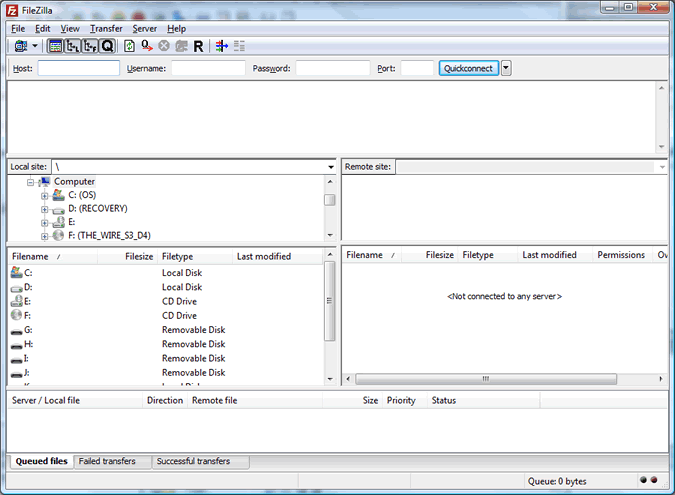
After you install it, open it. It'll look like this.
Choose File...Site Manager.
Click new site. Name it whatever you wish.
Choose the options this picture shows.:
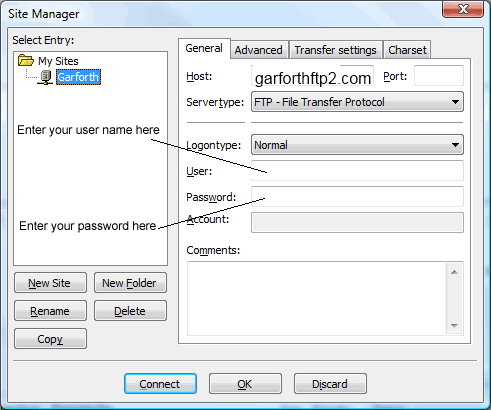
After you enter the information, click connect. This will connect you to the FTP server.
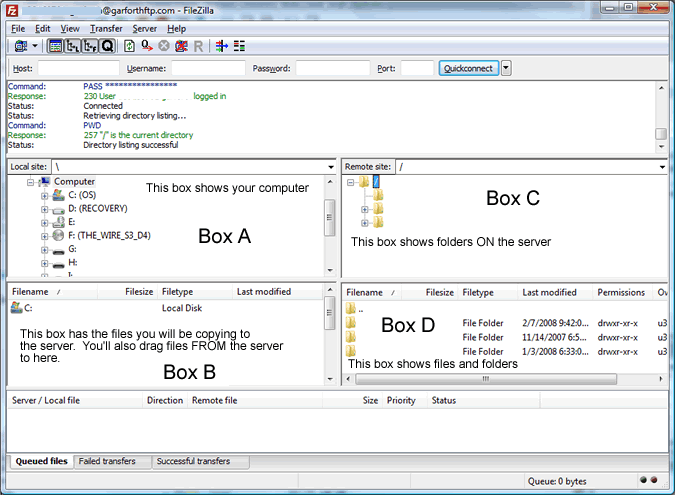
After you log in, you can click and drag files from Box B to box D and the files will upload to the server.
If you want to download the files, click and drag the files from Box D to Box B.
Make sure that you know what directory is selected in Box B so you can retrieve your files after you download them, and also so you can find the files to upload.